 Linkker
The 12 best free PDF editors, with every catch explained
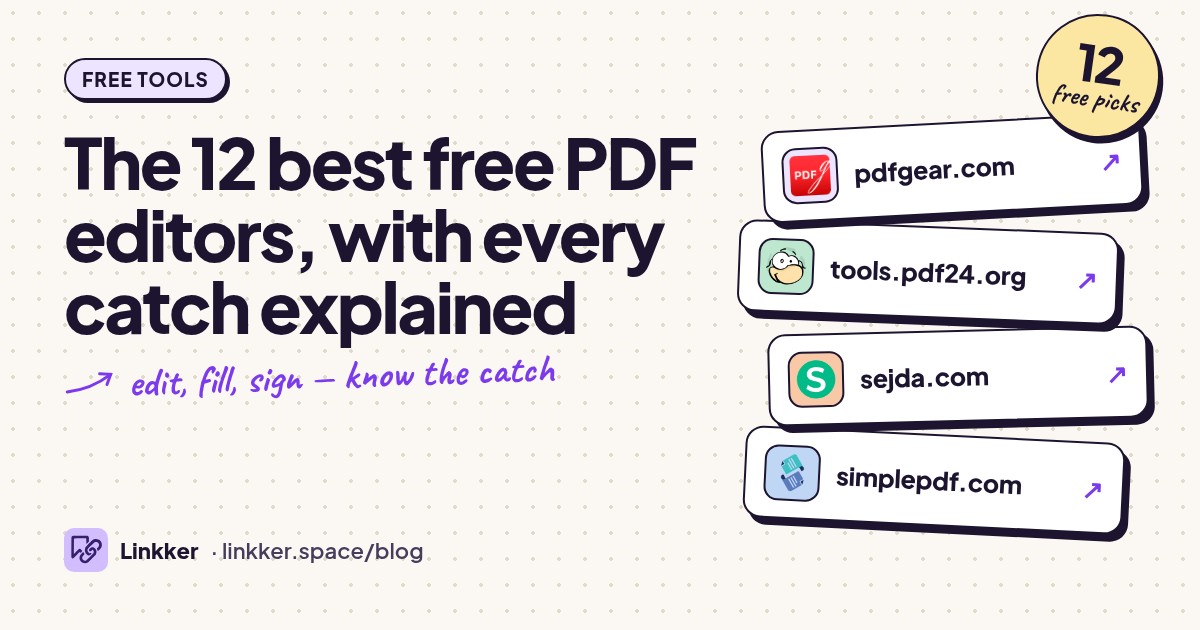
These free PDF editor picks suit people fixing a typo, filling out paperwork, signing a document, or organizing pages without paying.
Every tool qualifies by letting you complete its described job and save the result for free without a trial timer, with the distinction between changing existing text and adding annotations made clear.
-
Edit existing PDF text, add images, fill forms, and organize pages with free downloadable software.
Start here if you need to change words already on a page. PDFgear’s desktop software supports existing-text editing, giving it a broader role than tools that only place text boxes over a document. It also covers common paperwork jobs such as signing and organizing pages. The distinction matters: its browser tools are useful for quick additions, but the desktop app is the option to choose for rewriting existing text. Check the exported layout before sending it. Official editing guide.
- Best for
- Most people who need actual text editing
- The catch
- Install the desktop app to edit existing text; features differ between platforms and the browser tools.
-
Add text, images, shapes, and drawings to PDFs in your browser.
PDF24 suits the everyday request to put something on a PDF: a date, a note, an image, or an arrow pointing to a correction. Its online editor requires no registration, and the wider toolbox handles merging, conversion, and compression. Advertising supports the service rather than a task allowance. Keep its editing scope in mind, though: the editor adds content; PDF24 recommends conversion when you need to rewrite existing text. Files are uploaded for processing. Official editor details.
- Best for
- Everyday browser edits without registration
- The catch
- The site has ads, uploads files, and does not directly rewrite existing PDF text in its basic editor.
-
Change existing PDF text, add content, and fill or sign documents online.
Sejda is a useful next stop when you need an existing-text correction without installing software. You can click text to edit it, add images or links, and complete forms in the same editor. That makes it practical for an occasional document with several small changes. Its free service has hourly task allowances plus document size and page limits, so it suits short sessions better than a folder of paperwork. Online files are automatically deleted after processing. Official editor and limits.
- Best for
- Occasional existing-text edits online
- The catch
- Hourly task limits and document size and page caps apply; online editing uploads your file.
-
Fill PDFs with text, checkboxes, images, and signatures while processing files in your browser.
SimplePDF is a strong fit for application forms and documents that leave blank spaces for your answers. Add text, checkboxes, pictures, or a signature, then save the completed PDF. Its standout detail is local browser processing: the standalone editor does the work on your device. The company says this editor has no usage limits, ads, or account requirement. It is primarily a filler and annotator, so choose another tool when the job requires rewriting the document’s original wording. Free-use details.
- Best for
- Filling paperwork without an account
- The catch
- It adds content over the document rather than directly rewriting its original text.
-
Open PDFs as editable page objects and export your changes back to PDF.
Draw is the option for people who want a free, open source desktop tool for changing text and page objects. It comes with LibreOffice and can edit PDF contents before exporting a new PDF. This is especially useful for modest corrections to straightforward documents. The tradeoff is the import process: text can become separate objects, and fonts or positioning may need attention. Export a copy and inspect every changed page rather than assuming the original layout survived. LibreOffice’s PDF documentation.
- Best for
- Offline editing on Windows, Mac, and Linux
- The catch
- Requires installation, and imported PDFs can need font and layout cleanup.
-
Fill forms, add text boxes, and sign PDFs using the app included with macOS.
Mac users can often finish their paperwork in Preview before looking for another editor. Open the PDF, type into supported form fields, or add a text box where the document has no interactive field. Signature capture is particularly convenient: Apple supports creating a signature using a trackpad, camera, or compatible iPhone or iPad. It is a good choice for returning a completed form without uploading it to a website. Existing paragraphs still require a different editor. Apple’s form-filling guide.
- Best for
- Mac users completing and signing forms
- The catch
- This option requires a Mac and does not rewrite existing PDF paragraphs.
-
Read PDFs, fill supported forms, and add text, drawings, or images in the desktop browser.
Firefox makes sense when the PDF needs a few additions and you already use the browser. Its built-in viewer includes tools for adding text, drawing, and inserting images, alongside form filling. Open a local document, make your changes, and download the edited copy. This is enough for many worksheets and forms without finding a separate PDF service. Treat it as an annotation workspace: adding your answer to a blank area is different from changing the original printed question. Mozilla’s viewer guide.
- Best for
- Quick additions in a free desktop browser
- The catch
- The built-in tools annotate PDFs; they do not replace an editor for changing existing text.
-
Read PDFs, highlight passages, add notes, and fill supported forms in Edge.
Edge is a practical first check for Windows users who need to review a PDF or return a simple form. The built-in reader handles navigation and search, with markup tools for highlighting and adding feedback. Its advantage is convenience: many readers already have it installed. Open a local file in Edge and save a copy after editing. Use it for reading, annotations, and supported fields; changing the document’s underlying wording calls for PDFgear, Sejda, or Draw. Microsoft’s PDF reader documentation.
- Best for
- Windows users reviewing PDFs
- The catch
- It provides reader and annotation tools rather than full existing-text editing, and form support has limits.
-
Add text, images, and shapes online, with separate tools for merging and conversion.
iLovePDF is useful when a document needs both a visible addition and a separate file operation. Add a note or image in the editor, then use its merge or conversion tools as needed. The free browser service covers essential tools, although processing allowances apply. Keep the task specific: adding new text is the free editing use case described here, and access to advanced features should not be assumed. Its familiar toolbox suits occasional paperwork across different file formats. Official tool instructions and free-plan scope.
- Best for
- Basic additions plus merging or conversion
- The catch
- Free processing is limited, ads appear, and some advanced features require an upgrade.
-
Use a free online editor to fill forms and add content to PDFs.
PDFescape offers a browser editor for the recurring job of completing a PDF without printing it. Choose the Free Online option on its homepage; the Windows desktop product is a separate offering. The online tool suits adding answers and annotations to an existing page, especially when a basic reader is insufficient. Do not interpret the word editor as a promise of free paragraph rewriting. Its browser service also has document restrictions, making smaller, straightforward forms the sensible use case. Official online editor information.
- Best for
- Small forms in a browser editor
- The catch
- The free online version has document restrictions and does not provide full existing-text editing; desktop features are別
-
Read PDFs and add highlights, underlines, inline notes, and text annotations.
Okular is well suited to reviewing long documents, particularly on Linux. Its annotation mode supports popup and inline notes, highlighting, underlining, and added text. A contents panel and page thumbnails help you move through a report while keeping feedback attached to the relevant passages. Choose it when editing means reviewing someone’s work or marking reference material. It is a document viewer with annotation tools, so it will not serve the same purpose as an editor that rewrites original paragraphs. Official features.
- Best for
- Linux users reviewing long documents
- The catch
- Requires installation and focuses on reading and annotations rather than changing original page content.
-
Write, draw, and highlight over PDF pages in a free desktop notebook app.
Xournal++ fits students, teachers, and anyone whose PDF changes are mostly handwritten. Import the document as a background, add your notes or worked examples, and export the annotated result to PDF. Its notebook approach gives pen input more room than a conventional form filler. Keep the editable Xournal++ project as well as the exported PDF if you expect to revise your work. The underlying PDF acts as a background, so its original text is not directly editable. Official PDF workflow.
- Best for
- Handwritten feedback and study notes
- The catch
- Requires installation; original PDF content stays in the background, and sharing requires PDF export.









How to choose a free PDF editor
Start with the change you need to make. For an existing typo, choose PDFgear, Sejda, or LibreOffice Draw. For a date, signature, or answer in a blank space, SimplePDF, Preview, or your browser may be enough. For handwritten explanations, Xournal++ is a better fit.
A scanned page is a picture of text. Adding an annotation works, but rewriting its words usually requires optical character recognition, or OCR, first. An editor’s ability to add text does not establish that it can edit a scan.
For sensitive paperwork, choose an offline app or an editor that explicitly processes documents locally. Work on a copy, reopen the saved PDF, and check that text, signatures, and form answers appear correctly. Covering text with a white rectangle is not secure redaction.
If the document needs substantial rewriting, converting PDF to Word may be easier than moving individual text objects around. If the finished file exceeds an upload allowance, these free PDF compression tools address that separate job.
Quick answers
Which free PDF filler also works as a free PDF reader?
Preview, Firefox, and Edge can read PDFs and fill supported forms. SimplePDF is useful when you need to place answers on a document that has no fillable fields.
Is a free PDF merger the same as a free PDF combiner?
Yes. Both combine separate PDFs into one file. PDF24 and iLovePDF offer this job; arrange the files in the intended order before saving the combined document.
Can I get a free PDF maker and free PDF converter?
Yes. LibreOffice creates documents and exports PDFs, while PDF24 provides browser tools for creating and converting files. Conversion can change formatting, so check the result before sharing it.