 Linkker
7 free tools for how to convert PDF to Word, with each catch explained
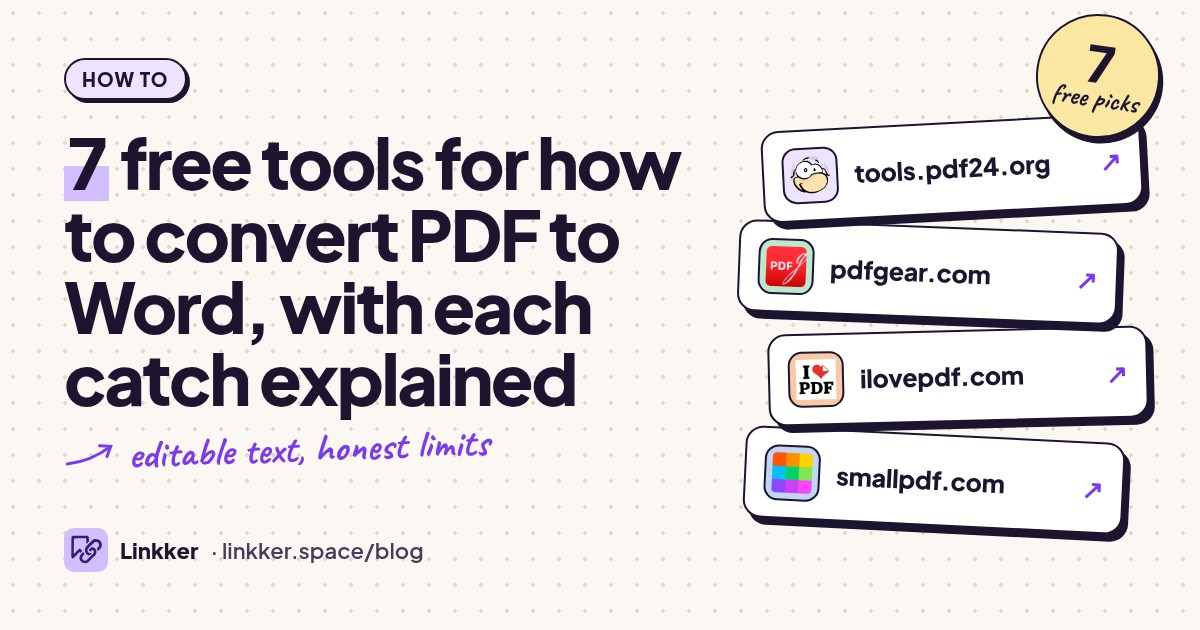
These seven tools show how to convert PDF to Word for free when you need to edit a document in your browser: upload the PDF, start the conversion, then download the Word file. Start with PDF24 for ordinary documents; if the pages are scans or photos, use an option with optical character recognition, or OCR.
Before uploading, try selecting a sentence in your PDF. Selectable text usually makes conversion simpler; a page that behaves like one large picture needs OCR. Keep the original so you can compare formatting afterward, and use these free alternatives to Microsoft Word if you need somewhere to edit the result.
-
Convert PDFs into editable Word documents without registering or watching a daily allowance.
PDF24 is a sensible starting point for documents with selectable text, especially when you have several files to work through. Its converter runs in your browser, requires no registration, and is funded by advertising rather than a restricted free allowance. Files are processed on its servers and automatically deleted after an hour. For scanned pages, the tool directs you to run OCR first, so expect an extra step before conversion. PDF24’s converter details.
- Best for
- Regular conversions without an account
- The catch
- The page has ads, files leave your device for processing, and scans need an OCR step first.
-
Convert ordinary PDFs or use free OCR to turn scanned pages into editable Word text.
PDFgear is the more direct choice when your PDF contains photographed or scanned pages. Its converter offers Standard mode for ordinary documents and Advanced mode with OCR for recognizing text in images. The online conversion is free, with a file size ceiling and one file processed at a time. Choose it for a scanned letter, worksheet, or short report, then check names, numbers, and punctuation against the original. PDFgear’s modes and limitations.
- Best for
- Scanned PDFs that need free OCR
- The catch
- Online uploads have a file size limit, processing happens in the cloud, and batch conversion requires its desktop app.
-
Turn PDFs with selectable text into editable Word files through a simple upload page.
iLovePDF makes the key distinction clear before you convert: its standard option handles selectable text, while OCR for scanned pages is a premium feature. That makes the free converter useful for PDFs exported from a word processor, such as reports and handouts. Skip it for an image-only scan if you need a completely free workflow. Its Basic offering includes essential tools with limited document processing. Conversion options and free-plan details.
- Best for
- Reports and handouts with selectable text
- The catch
- Free document processing is limited, and OCR for scanned PDFs is excluded.
-
Convert a PDF to a standard DOCX file without creating an account.
Smallpdf suits occasional conversions when you want a DOCX you can open in Word, Google Docs, or another compatible editor. The basic online conversion works without registration, and the same browser workflow works on phones and computers. Free use has a daily download limit, so it is less convenient for a folder full of documents. Its scanned-document OCR option is a Pro feature. Smallpdf’s converter and free-use limits.
- Best for
- An occasional DOCX conversion
- The catch
- Daily download limits apply, and scanned-PDF OCR requires a paid feature.
-
Upload a PDF to Adobe’s online converter and download an editable DOCX.
Adobe’s browser converter is useful for a one-off document when you prefer working through the company behind Acrobat. Select your PDF, let the conversion run, and download the Word version. The free online tool has daily conversion limits, and Adobe says repeat use may prompt you to sign in to download. Use it for an occasional file, with time afterward to check page breaks, images, and tables. Adobe’s conversion instructions and conditions.
- Best for
- One-off conversions through Adobe
- The catch
- Daily conversion limits apply, and repeat downloads may require signing in.
-
Convert shorter PDFs to Word with clearly stated free processing limits.
Sejda puts its free restrictions directly on the converter page: documents must fit its page and file size limits, and an hourly task allowance applies. That clarity makes it easy to decide whether a short report or application fits before uploading. You can choose a local file or import from supported cloud storage, then convert and download the Word document. Uploaded files are automatically deleted after two hours. Sejda’s converter and free limits.
- Best for
- Short documents and occasional cloud imports
- The catch
- Page count, file size, and hourly task limits restrict free use.
-
Recognize text in scanned PDFs and export it to a Word document.
OnlineOCR is useful when recovering editable text matters more than reproducing a complicated page design. Upload the scan, select its language, and choose Microsoft Word as the output format. Guest conversion is free without registration, but file size and hourly limits apply, and the page includes advertising. Start with a clear, upright scan and proofread the output carefully, especially figures and text arranged in columns. OnlineOCR’s supported formats and guest restrictions.
- Best for
- Extracting editable text from clear scans
- The catch
- Guest use has file size and hourly conversion limits; advanced multipage options require registration.






How to convert a PDF to a Word document with PDF24
- Open PDF24’s PDF to Word tool and click Choose files.
- Select the PDF from your phone or computer. If its text cannot be selected because the pages are scans, follow the tool’s OCR link first, then return to conversion.
- Click Convert and wait for processing to finish.
- Download the Word file and open it in your preferred document editor.
- Compare it with the original before making changes. Check headings, page breaks, tables, and any text next to images. Save an untouched copy of the converted file before editing.
A PDF fixes content in position, while Word needs editable paragraphs and objects. Conversion can change spacing or split a paragraph into separate blocks. If the result needs extensive cleanup, try a second converter before rebuilding the layout by hand.
Quick answers
What is a free PDF to Word converter online that needs no sign-up?
PDF24 requires no registration and advertises no usage limits. PDFgear is another free option, including an OCR mode for scanned documents, with file size and single-file restrictions. Neither requires starting a timed trial for the core conversion. PDF24, PDFgear.
How to convert JPG to PDF, or another image to PDF?
Use iLovePDF’s separate JPG to PDF tool. Upload your pictures, arrange their order, choose the page settings, and convert. This places images inside a PDF; it does not recognize their text or make that text editable. JPG to PDF tool.
How to convert PDF to Excel instead of Word?
Use Sejda’s separate PDF to Excel converter to extract table data into a spreadsheet. Check column alignment, dates, totals, and decimal separators afterward. Converting a table through Word first adds an unnecessary step. PDF to Excel tool.