 Linkker
11 free browser extensions for students, organized by your study week
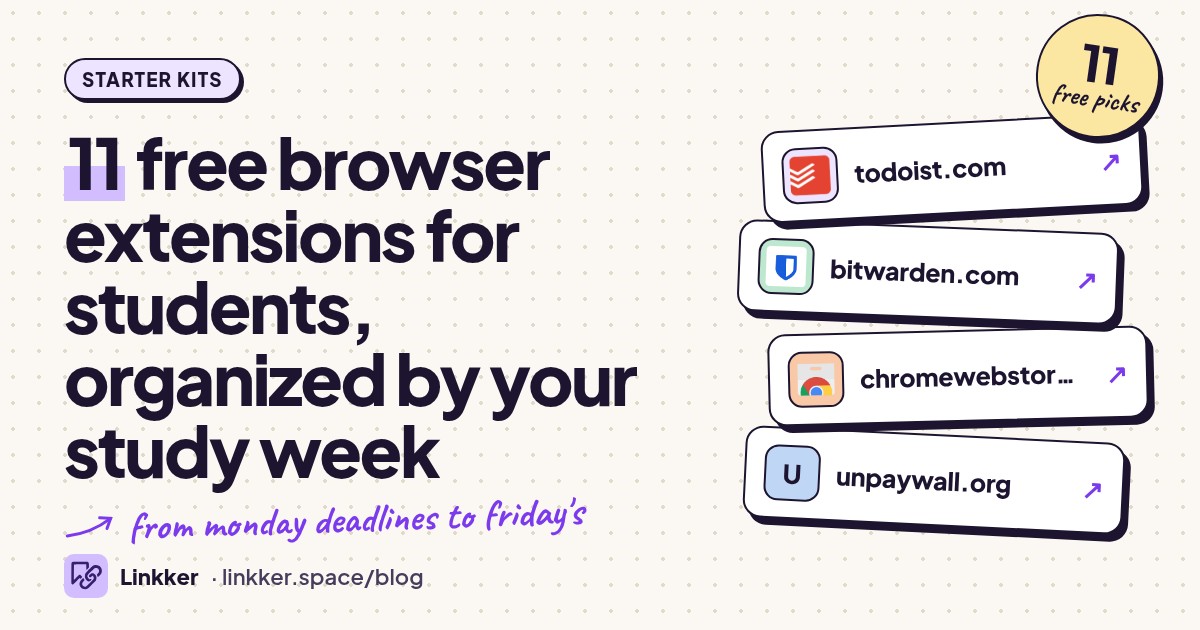
This browser extension starter kit helps students plan assignments, find papers, read difficult material, and finish focused study sessions for free. If you searched for an extension for students, start with the job slowing you down: capturing deadlines, collecting sources, or keeping distractions away.
The list follows a study week, from checking assignments to saving Friday’s research. Install two or three tools first; each earns its place by doing a different job. These picks focus on desktop browsers, and browser support varies. For places to search once your toolkit is ready, see our guide to free websites for research papers.
-
Turn assignment pages into tasks you can schedule and check off.
Start the week by capturing work while the assignment page is still open. Todoist’s browser extension lets you add tasks without switching to a separate planning tab. Give each task a clear action, such as “outline biology report,” rather than just a course name.
Its free plan includes task reminders and list or board layouts, enough for a straightforward assignment tracker. Keep related coursework together if you reach the project limit. The official plan comparison explains what stays free.
- Best for
- Capturing assignments and due dates
- The catch
- An account is required, and the free plan limits projects, filters, and activity history.
-
Save and autofill separate passwords for your student accounts.
Before opening the library portal, course platform, and group workspace, give those accounts separate passwords. Bitwarden’s extension generates passwords and fills saved logins, reducing the temptation to reuse one password across everything.
The useful free detail is device syncing: your saved passwords are available across your computer and phone. That suits students moving between personal devices. Set aside time to secure your vault account and remember its master password. Bitwarden’s personal feature comparison confirms that password storage, generation, and autofill are free.
- Best for
- Managing school and personal logins
- The catch
- You need a vault account; file attachments and the integrated verification-code generator are outside the free plan.
-
Look up a paper’s title in Google Scholar from the page you are reading.
When a lecture page or article mentions a study, select its title and open Google Scholar Button. The popup helps you find the paper without manually rebuilding the search in another tab.
It also offers formatted references, which are handy starting points for a reading log. Check the author, date, and citation style before submitting them. This is a free discovery shortcut, but finding a result does not guarantee free full text. Google describes these features in its official extension listing.
- Best for
- Following references from lectures and articles
- The catch
- Some results require library access or payment, and generated references still need checking.
-
Free
Unpaywall
unpaywall.orgFind legally available open versions of scholarly papers.
Use Unpaywall when your research leads to a publisher page with an inaccessible article. The Chrome and Firefox extension looks for a legally available open copy and displays a link when it finds one.
It complements Scholar Button: one helps identify a paper, while the other checks for an accessible version. That makes it useful during literature searches where promising titles keep hitting access barriers. Unpaywall explicitly describes its extension as free and legal. It cannot find an open copy for every paper.
- Best for
- Finding open copies of research papers
- The catch
- Only papers with a discoverable open version get a full-text link.
-
Save sources and their bibliographic details into a research library.
Once a source looks useful, save its details before moving on. Zotero Connector recognizes many research pages and sends their information to Zotero, where you can organize sources into collections for each assignment.
Its standout benefit comes later: the same library supports citations and bibliographies, saving you from reconstructing references near the deadline. Use it with the free Zotero desktop app for the full workflow. Zotero explains the Connector’s role and the distinction between free reference syncing and limited attachment storage.
- Best for
- Keeping sources ready for citations
- The catch
- The full workflow uses the Zotero app, and free cloud storage for attached files is limited.
-
Free plan
Read Aloud
readaloud.appRead web text aloud so you can listen while following along.
Switch to listening when another dense web reading becomes hard to follow. Read Aloud turns webpage text into speech, offering another way to work through articles or listen for awkward wording in text you can open in the browser.
Start with the standard voices available on your device rather than assuming every voice is unrestricted. The project provides extensions for Chrome, Firefox, and Edge through its official website. Optional premium voices have usage allowances, and voice quality varies.
- Best for
- Listening to readings and reviewing wording
- The catch
- Voice availability and quality vary; premium voices have usage limits, and some page layouts read poorly.
-
Adjust bright websites with dark themes and contrast controls.
If bright course pages feel uncomfortable, Dark Reader lets you adjust their appearance. It provides brightness, contrast, and sepia controls, with settings for individual websites. Those controls are more useful than forcing the same look onto every page.
Use the free Chrome, Firefox, or Edge version for this toolkit. Check charts and diagrams after enabling it, since altered colors can change how they look. The developer provides official installation links and documents rendering problems in its help guide.
- Best for
- Customizing bright reading pages
- The catch
- Some pages render incorrectly or slow down; the Safari app is outside this free recommendation.
-
Free
LeechBlock NG
proginosko.comBlock distracting websites during scheduled study periods.
Before drafting or solving problem sets, tell LeechBlock NG which sites interrupt your work and when to block them. You can use scheduled blocks, time allowances, or an immediate lockdown for a study session.
Separate site sets are the standout feature: you might restrict social feeds during class preparation while keeping a video site available for tutorials. Start with a small block list so useful course material stays accessible. The developer’s official documentation describes the free tool and its scheduling options.
- Best for
- Protecting focused study sessions
- The catch
- You must configure the rules, and the extension cannot stop distractions on another device or browser.
-
Track study time from your browser to make future estimates more realistic.
Use Clockify when assignments repeatedly take longer than you expect. Start its browser timer for a specific task, then stop it when you finish or take a break. Label the work clearly enough that the record means something later.
The core browser timer is free, making it useful for comparing planned study time with actual time spent. A week of honest entries can help you leave more room for demanding courses. Clockify’s extension guide confirms free tracking and the account requirement.
- Best for
- Learning how long coursework takes
- The catch
- An account is required, and forgetting to stop the timer can distort your records.
-
Free
OneTab
one-tab.comCollapse open tabs into a list you can restore later.
At the end of a research session, OneTab turns a crowded browser window into a list of links. Restore individual pages when you need them rather than reopening the entire session.
It is a simple way to clear your workspace between subjects, and the standard workflow needs no registration. Remember that saved links are pointers, not saved copies of the pages themselves. Also check before using its sharing feature: OneTab explains that sharing uploads the selected list to a webpage.
- Best for
- Clearing tabs between subjects
- The catch
- Saved links do not preserve page contents, and using “Share as a web page” uploads the list.
-
Save a webpage as one HTML file for offline reference.
Before closing a useful page, save an offline copy with SingleFile. It packages the page and its resources into one HTML file that opens in a browser, making it useful for reading during travel or keeping a reference copy of assignment guidance.
Unlike a bookmark, the saved file contains page content. The free, open source extension needs no account for local saves. Its official site explains the format; the project’s FAQ covers capture limitations. Preview important saves before relying on them.
- Best for
- Keeping offline copies of useful pages
- The catch
- Interactive features, embedded media, and dynamically loaded content may not survive the save.






Set it up in 10 minutes
- Minutes 0–2: Pick your biggest obstacle. Install Todoist for forgotten tasks, Zotero Connector for lost sources, or LeechBlock NG for distractions.
- Minutes 2–5: Configure one real example: capture an assignment, save a paper, or schedule a study block. Zotero’s desktop setup may need extra time.
- Minutes 5–8: Add one supporting tool. Pair Scholar Button with Unpaywall for research, or Read Aloud with a reading assignment.
- Minutes 8–10: Pin the extensions you will use regularly. Try the complete workflow on an actual course page and check the result.
Quick answers
Which extension should a student install first?
Choose by the immediate problem. Todoist suits assignment capture, Zotero Connector suits source collection, and LeechBlock NG suits focused work. You do not need the whole list.
Are these free trials?
The recommended core jobs are available without a trial timer. Some tools offer optional upgrades or limit storage, projects, or voice usage; each catch is listed above.
Will they work on a school Chromebook?
Chrome-compatible extensions may work, but your school’s administrator can restrict installations. Use the official installation links and follow your school’s device rules.
Can extensions finish assignments for me?
These tools help you manage work, access sources, and read material. You still need to evaluate evidence, check citations, and follow your course’s rules.