 Linkker
11 best Chrome extensions for students, from research to deadlines
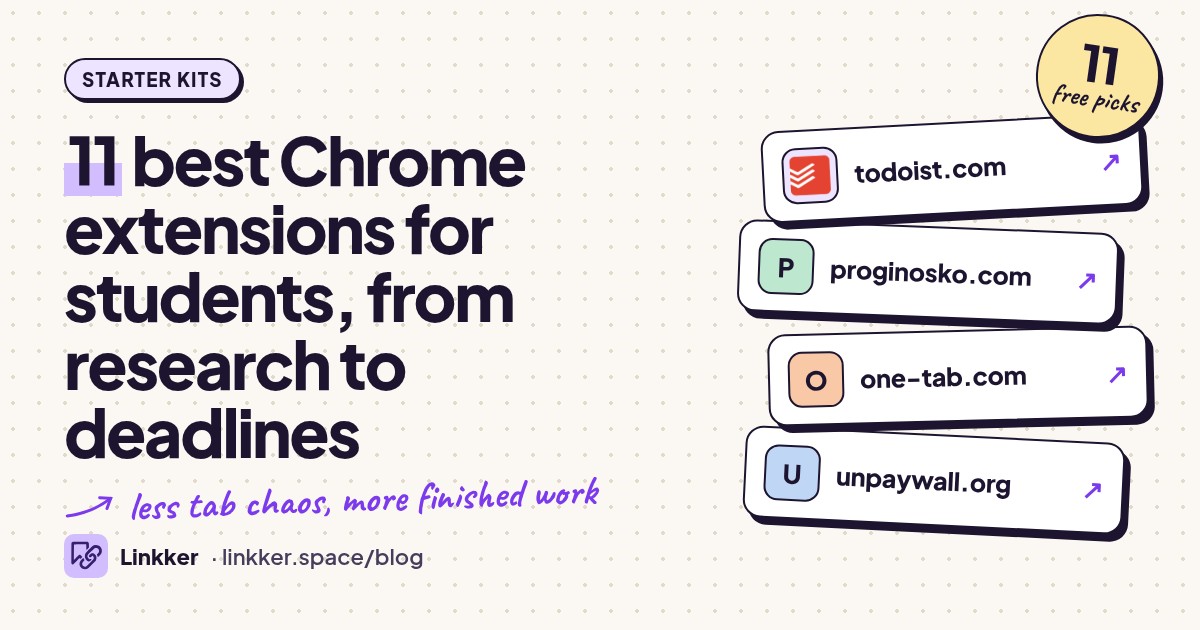
The best Chrome extensions for students help you finish actual coursework: capture an assignment, find a readable paper, keep its citation, and submit a cleaner draft. This starter kit suits high school and college students using Chrome on a computer, with free tools arranged around a typical study week.
Every pick has a useful free core without a trial timer. You don’t need all 12; start with the job that keeps slowing you down. For tools you can use directly in a browser, pair this kit with these useful websites for students.
-
Turn assignment pages into tasks you can schedule and check off.
Start the week by turning scattered course pages into a short task list. Todoist’s Chrome extension lets you capture tasks while browsing, so an assignment link can sit beside its due date instead of disappearing into another tab. Use clear actions such as “outline history essay” rather than just “history.” The free Beginner plan covers everyday tasks and reminders, though personal projects and activity history are limited.
- Best for
- Capturing assignments and planning the week
- The catch
- An account is required, and the free plan limits personal projects, filters, and activity history.
-
Free
LeechBlock NG
proginosko.comBlock distracting websites during the study periods you choose.
Give your first study session a defined boundary. LeechBlock NG can block selected sites on a schedule, after a browsing allowance, or immediately through its lockdown feature. Separate block sets let you treat social feeds differently from sites you occasionally need for class. The developer describes it as a free productivity tool. It suits students who know exactly where their study time goes, but need help interrupting the habit.
- Best for
- Keeping study sessions focused
- The catch
- You must configure the sites and rules yourself; it only controls browsing where the extension is installed.
-
Free
OneTab
one-tab.comCollapse open tabs into a list and restore them when you need them.
When three subjects have taken over your tab bar, OneTab gives you room to work. Its core tab collection works without registration, and you can reopen individual pages instead of restoring everything. Use it to park background reading while keeping the current assignment visible. Remember that it stores links, so reopening a page still depends on that website. The official help page also warns that uninstalling deletes stored tabs; export important lists.
- Best for
- Parking tabs between study sessions
- The catch
- Saved links do not preserve page contents, and uninstalling the extension deletes locally stored tabs.
-
Free
Unpaywall
unpaywall.orgFind legally available free copies of scholarly articles.
Before abandoning a paper at a publisher’s access screen, let Unpaywall check for an open copy. Its official extension listing explains that it links to authorized full text, including manuscripts hosted by universities and government sites. A green tab appears when it finds a match. This is especially useful for literature reviews, but coverage depends on an accessible copy existing; your library remains useful when nothing turns up.
- Best for
- Finding accessible research papers
- The catch
- It cannot find a free copy of every paper, and the available manuscript may differ from the publisher’s formatted PDF.
-
Save research sources and their bibliographic details into Zotero.
Save the citation when you find the source, while the author and publication details are still in front of you. Zotero Connector recognizes supported research pages and can save available PDFs alongside their records. The official listing confirms that Zotero is free and open source. Install the desktop app for organizing references and inserting citations into documents. Always check imported metadata before submitting a bibliography.
- Best for
- Essays, lab reports, and bibliographies
- The catch
- The full workflow needs Zotero’s desktop app; free cloud storage for attachments is limited.
-
Save a webpage as one HTML file for later reading.
Keep an offline copy of an important explainer or reference page before heading somewhere with unreliable Wi-Fi. SingleFile packages a page into one HTML file that you can open later in a browser. Its official repository also documents highlighting, notes, and saving selected content. It is useful for preserving reading material, but treat the result as a snapshot: interactive tools and live information need the original website.
- Best for
- Offline reading and preserving webpages
- The catch
- Saved snapshots do not reproduce every interactive feature; check the file before relying on it offline.
-
Translate selected passages while you read websites.
Use Google Translate when one unfamiliar passage interrupts an otherwise readable source. Highlight or right-click text to see a translation without copying it into another tab. The Google-published listing makes an important distinction: the extension handles selected text, while whole-page translation is built into Chrome. It helps with understanding foreign-language reading, though technical terms and quotations still deserve a dictionary or another reliable check.
- Best for
- Understanding unfamiliar words and passages
- The catch
- Whole-page translation uses Chrome’s built-in feature, and machine translations can miss context.
-
Free & open source
Read Aloud
readaloud.appRead webpage text aloud using text-to-speech voices.
Switch to listening when another screenful of reading feels difficult, or hear a draft to catch awkward sentences. Read Aloud can speak a selected passage, which is handy when navigation menus clutter a page. Choose a native browser voice for the free core workflow. Its official store listing distinguishes those voices from optional cloud voices that may require additional access. Voice quality varies, especially with specialist vocabulary.
- Best for
- Listening to readings and reviewing drafts
- The catch
- Some cloud voices require separate access or an API key; native voice quality varies by device.
-
Apply adjustable dark colors to bright websites.
Make a bright reading page more comfortable to look at without changing your entire computer’s appearance. Dark Reader offers brightness, contrast, and sepia controls, plus settings for individual websites. Its official Chrome listing describes automatic theme generation and site exclusions. It suits students who prefer darker pages during long reading sessions. Disable it when inspecting artwork, charts, or anything whose original colors matter.
- Best for
- Adjusting website appearance for reading
- The catch
- Some pages need a site exception, and other extensions that change page colors can conflict with it.
-
Flag spelling, grammar, and punctuation problems as you write online.
Run a final language check on discussion posts, emails, and assignment drafts. LanguageTool supports multiple languages and offers basic corrections through its browser add-on. Its free Basic option includes everyday grammar and spelling checks, with limits on text length and advanced suggestions. Set the appropriate English variant before reviewing a paper. Accept edits selectively, particularly around subject terminology, quotations, and sentences whose meaning a suggested change could alter.
- Best for
- Proofreading coursework and emails
- The catch
- Free checking has text-length limits, and advanced grammar and style suggestions are restricted.
-
Generate, store, and autofill passwords for your school and personal accounts.
Finish setting up your study browser by sorting out its logins. Bitwarden’s free personal plan includes unlimited passwords and devices, plus password generation and autofill through its Chrome extension. The official feature comparison confirms those core features remain free. It suits students moving between a laptop and phone who want separate passwords for each service. Create the account carefully and keep your master password somewhere secure.
- Best for
- Managing school and personal logins
- The catch
- An account is required, and you must protect your master password; some additional security features are restricted.






Set it up in 10 minutes
- Minutes 1–2: Choose one immediate problem: missed tasks, distracting sites, scattered sources, or proofreading. Install the matching extension from its official page.
- Minutes 3–5: Configure one useful action. Add an assignment with a due date, create a study block, or save a research source.
- Minutes 6–8: Try that action on real coursework. Check the saved citation, reopen the offline page, or listen to a paragraph.
- Minutes 9–10: Pin the extension you will use regularly. Add another only when you can name its job. Zotero’s desktop setup may need extra time.
Quick answers
Best Chrome extensions for Android
Chrome on Android phones does not run these desktop extensions. “Add to Desktop” queues an extension for your computer. Use mobile apps where available, such as Todoist or Bitwarden. Google’s installation guidance explains the distinction.
Best Chrome extensions for YouTube
Video Speed Controller is the relevant pick here for reviewing tutorials. If YouTube’s built-in playback controls already cover your needs, you can skip the extension.
Best Chrome extensions for teachers
Zotero Connector helps collect references for lessons, LanguageTool checks written instructions, and Read Aloud provides a listening option. On school-managed computers, administrators may restrict installation, as Google’s help page explains.
Best Chrome extensions for work
Todoist, Bitwarden, and LanguageTool also fit internships and part-time jobs: track tasks, manage logins, and review emails. Follow your workplace’s rules before installing them.